Imaging and DICOM
Keep the study, the finding, and the next view together.
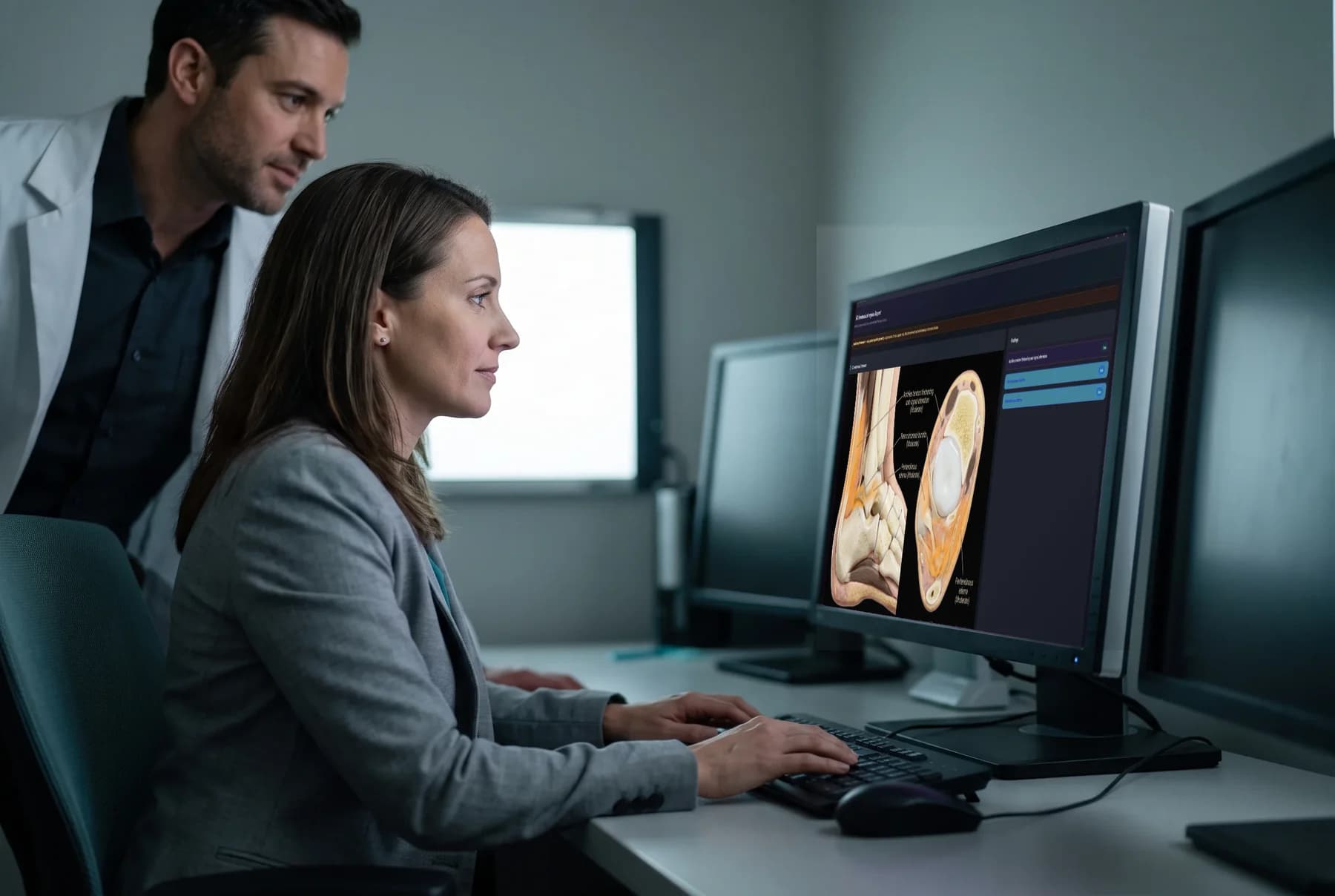
Review imaging in a true-fullscreen viewer, place annotations, examine severity-rated AI findings, and move studies through the live DICOMweb interoperability rail.
Viewer and annotations
A focused imaging workspace that can truly fill the screen.
Open uploaded studies in the in-app viewer, annotate what matters, and use true fullscreen when the image needs the whole display.
- Add annotations inside the imaging viewer.
- Use the mobile dialog standard with true fullscreen.
- Open 3D or AI dialogs without dismissing the viewer beneath them.
AI image analysis
Findings arrive with severity and a place on the image.
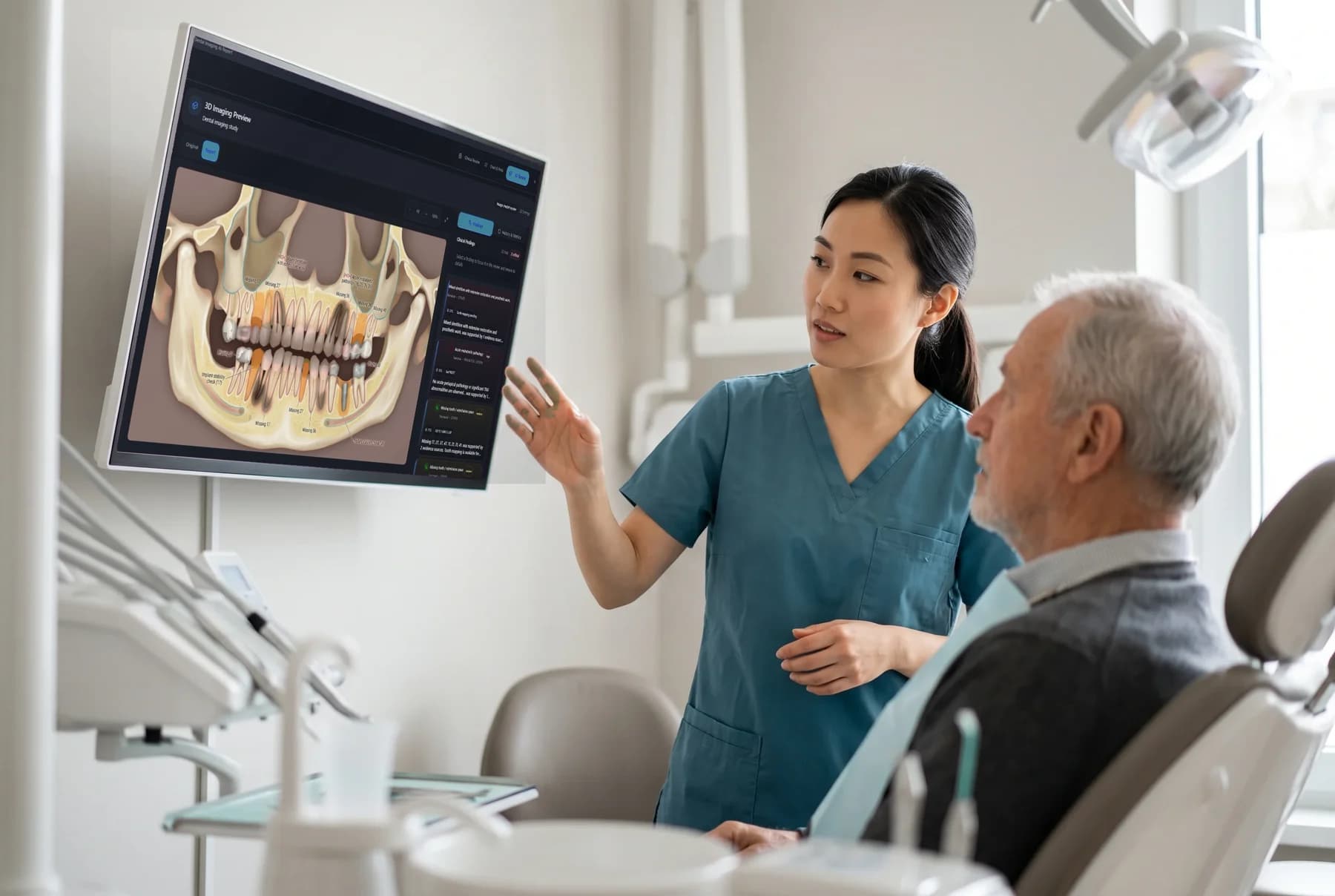
AI image analysis supports X-ray, CT, MRI, ultrasound, and endoscopy. Findings include severity ratings and overlay coordinates so the result remains tied to the study.
- Analyze X-ray, CT, MRI, ultrasound, and endoscopy images.
- Review severity-rated findings with overlay coordinates.
- Use DICOM files as AI vision input after metadata parsing and preview generation.
Dental and anatomical 3D
Move from a study to a clearer anatomical reference.
Generate dental 3D reports from imaging studies and use the organ mesh registry for anatomical visualization. The on-screen 3D anatomy is a reference, not patient-specific geometry.
- Generate dental 3D reports from imaging studies.
- Explore registered 3D organ meshes for anatomical visualization.
- Keep the anatomical-reference disclaimer visible and explicit.
Live DICOMweb rail
Pair an imaging source, then ingest, search, and retrieve.
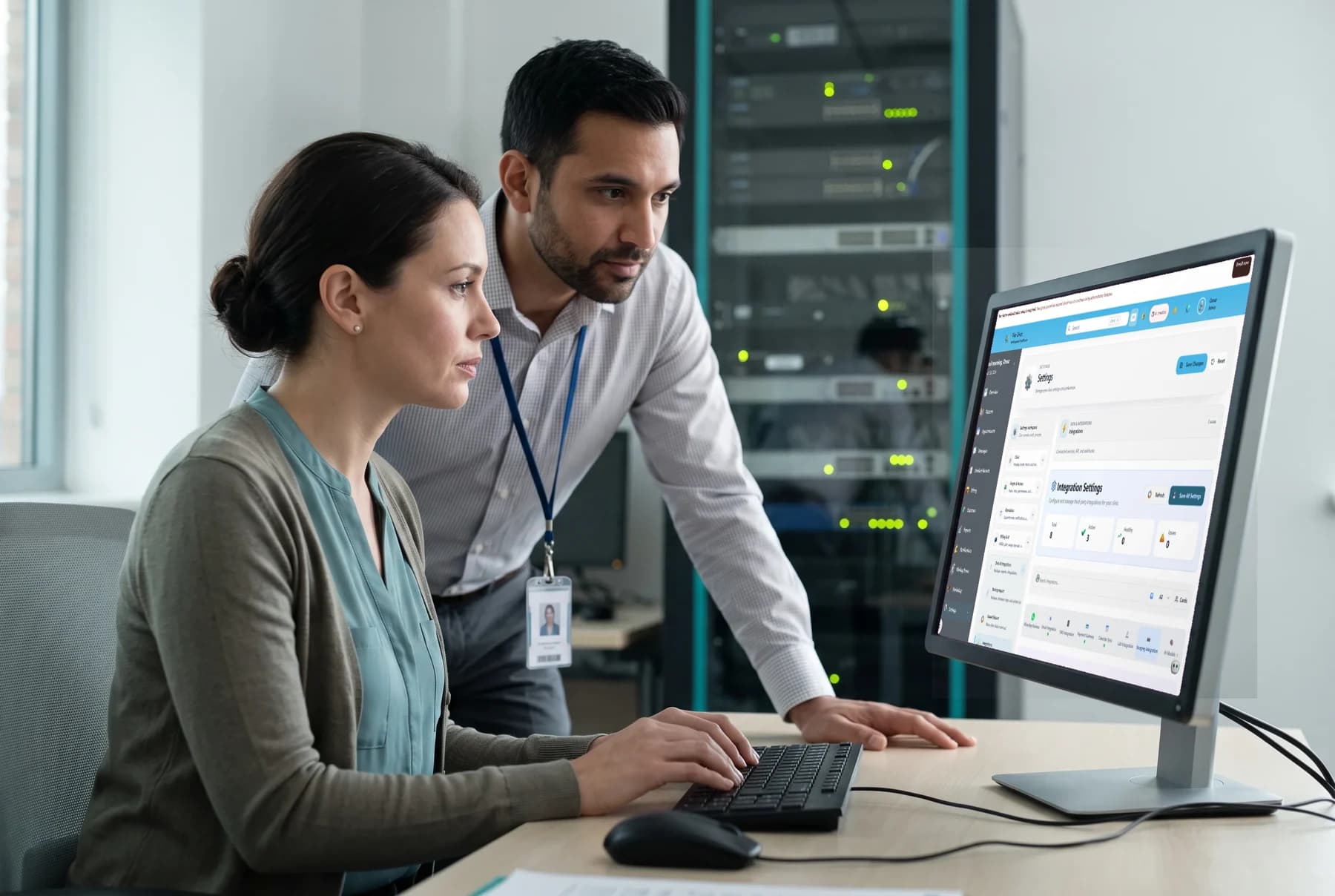
DICOMweb is the interoperability rail that is live end to end. Its standards-compliant server connects device-authenticated study ingestion with study search and retrieve.
- Ingest through STOW-RS with a bearer token authenticated per device.
- Search studies through QIDO-RS and retrieve them through WADO-RS.
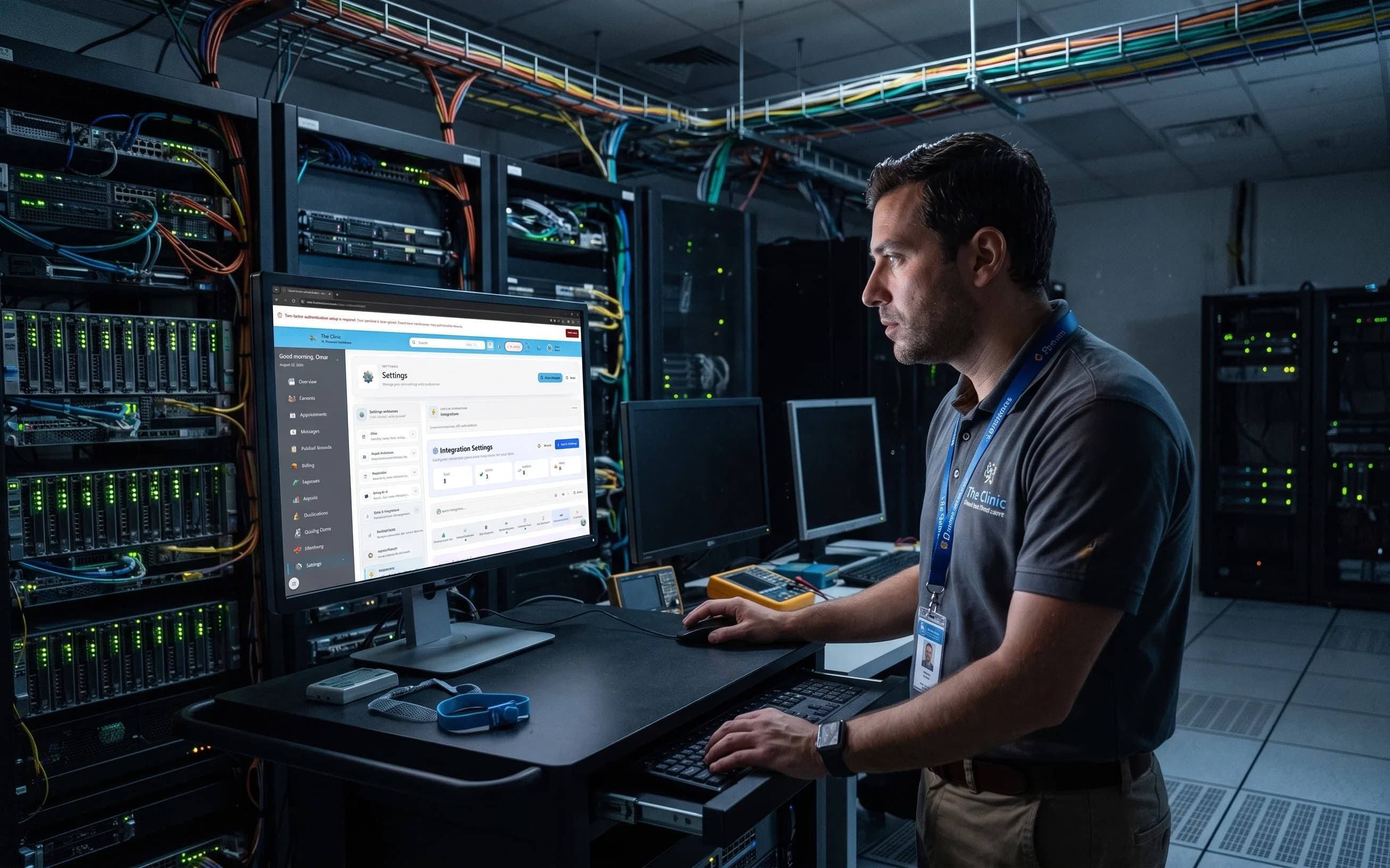
- Pair, revoke, enable, or disable devices in Settings → Integrations → Imaging.
Imaging, from review to exchange
- 5 modalities
- AI image analysis
- Coordinates
- Findings mapped to overlays
- True fullscreen
- Viewer and annotations
- DICOMweb
- Live end-to-end rail
See the workflow
Bring imaging review and DICOMweb exchange into the clinical workspace.